Branding & white-label
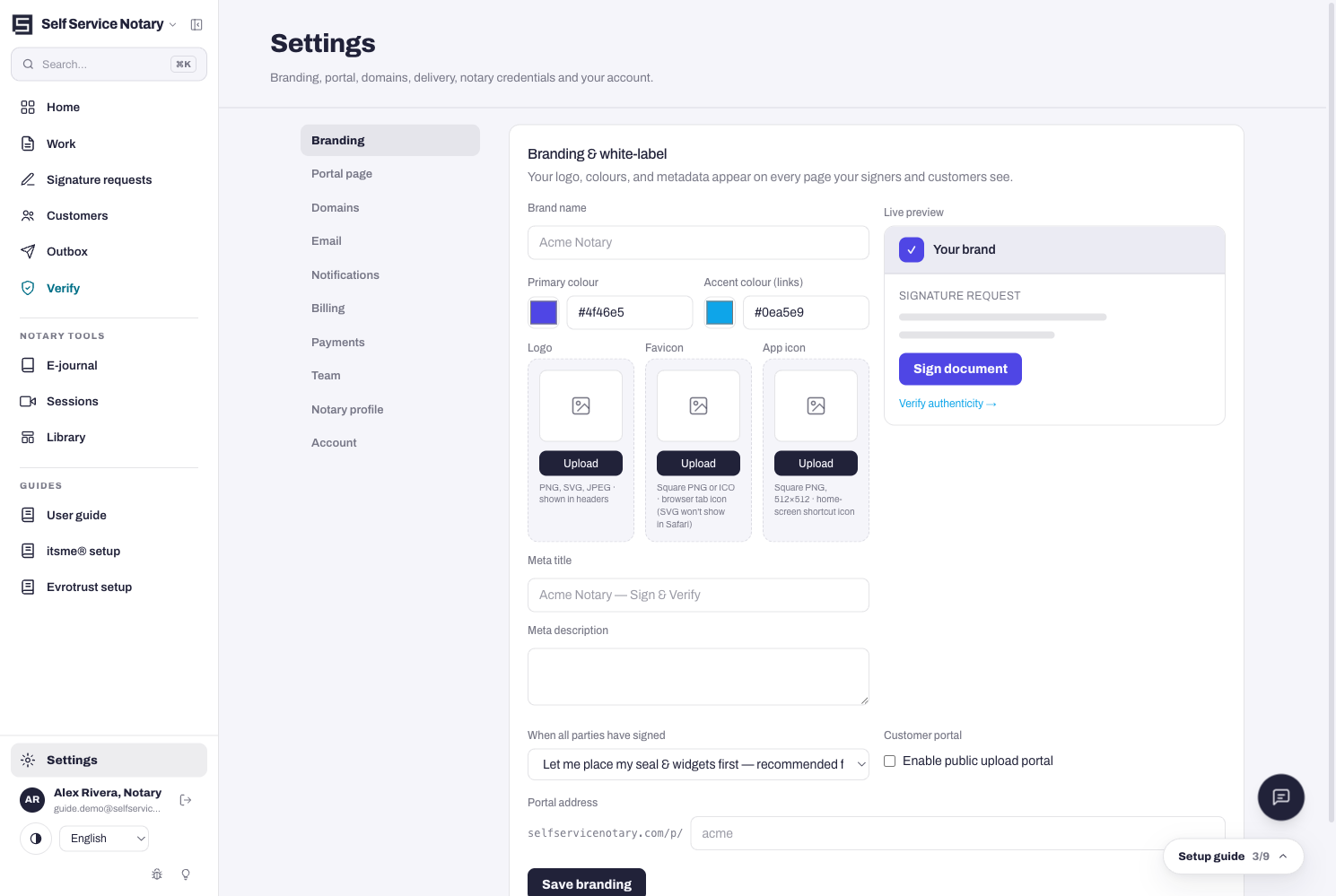
Settings → Branding. Your logo, colours and metadata appear on every page your signers and customers see — the portal, the signing pages, the verification page, even the emails.
- Brand name — the practice name customers see instead of ours.
- Brand colour — the accent used across your pages.
- Logo — PNG, SVG or JPEG, shown in headers. PNG with transparency sits best.
- Watch the live preview on the card: it renders your brand on a signature request as you type.
- Portal address — the public web address of your page: selfservicenotary.com/p/your-name, or your own domain once connected (see the domain guide).
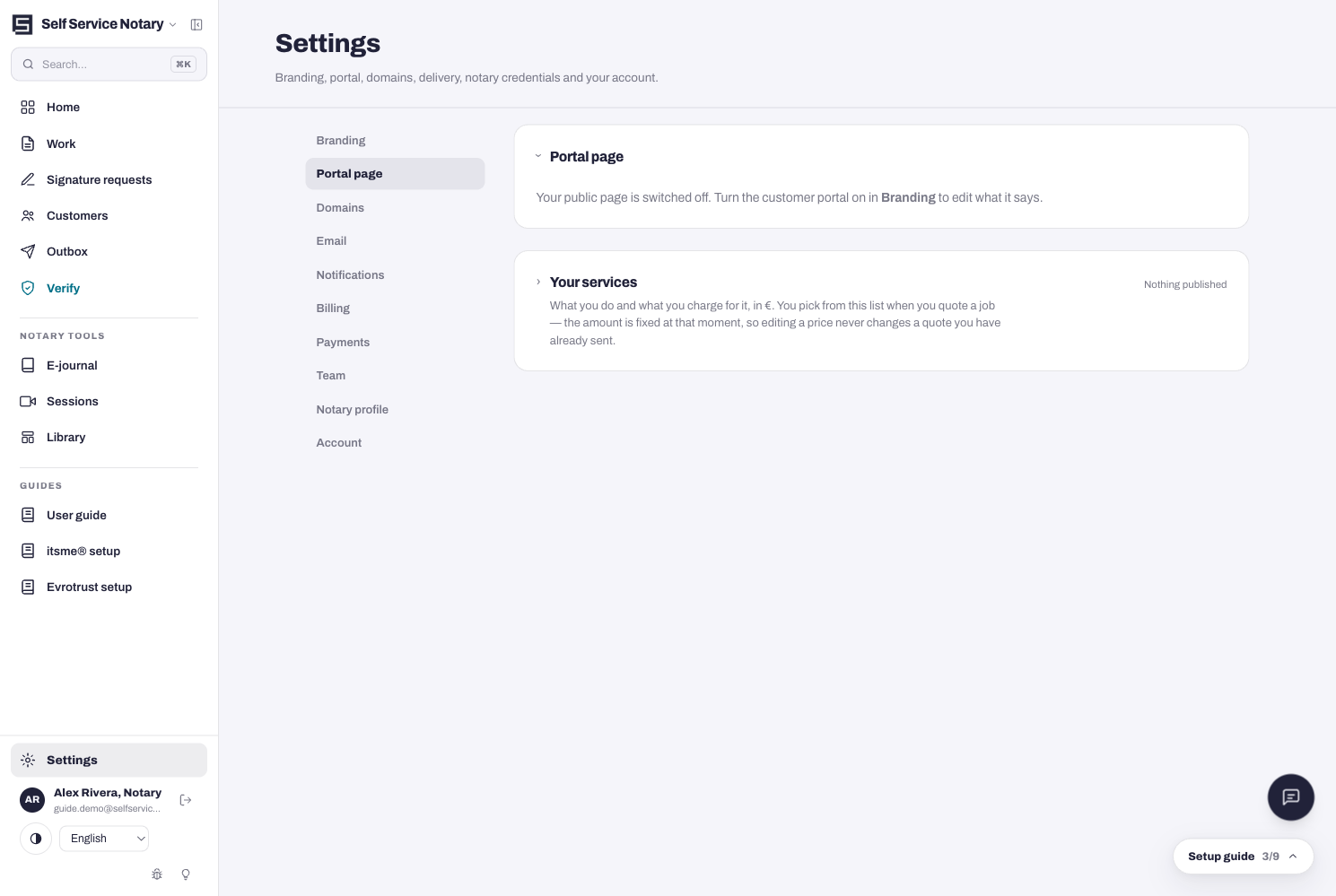
- Press Save branding. The customer switch for the portal itself also lives here — the Portal page tab in Settings stays read-only until you turn it on.
White-label is the Practice plan's headline feature
On the Practice plan the portal runs on your own domain with your branding end to end — customers never see our name anywhere.
The Portal page tab
Once the portal is on, Settings → Portal page is where its content and your service list live. Nothing goes public until you publish it.