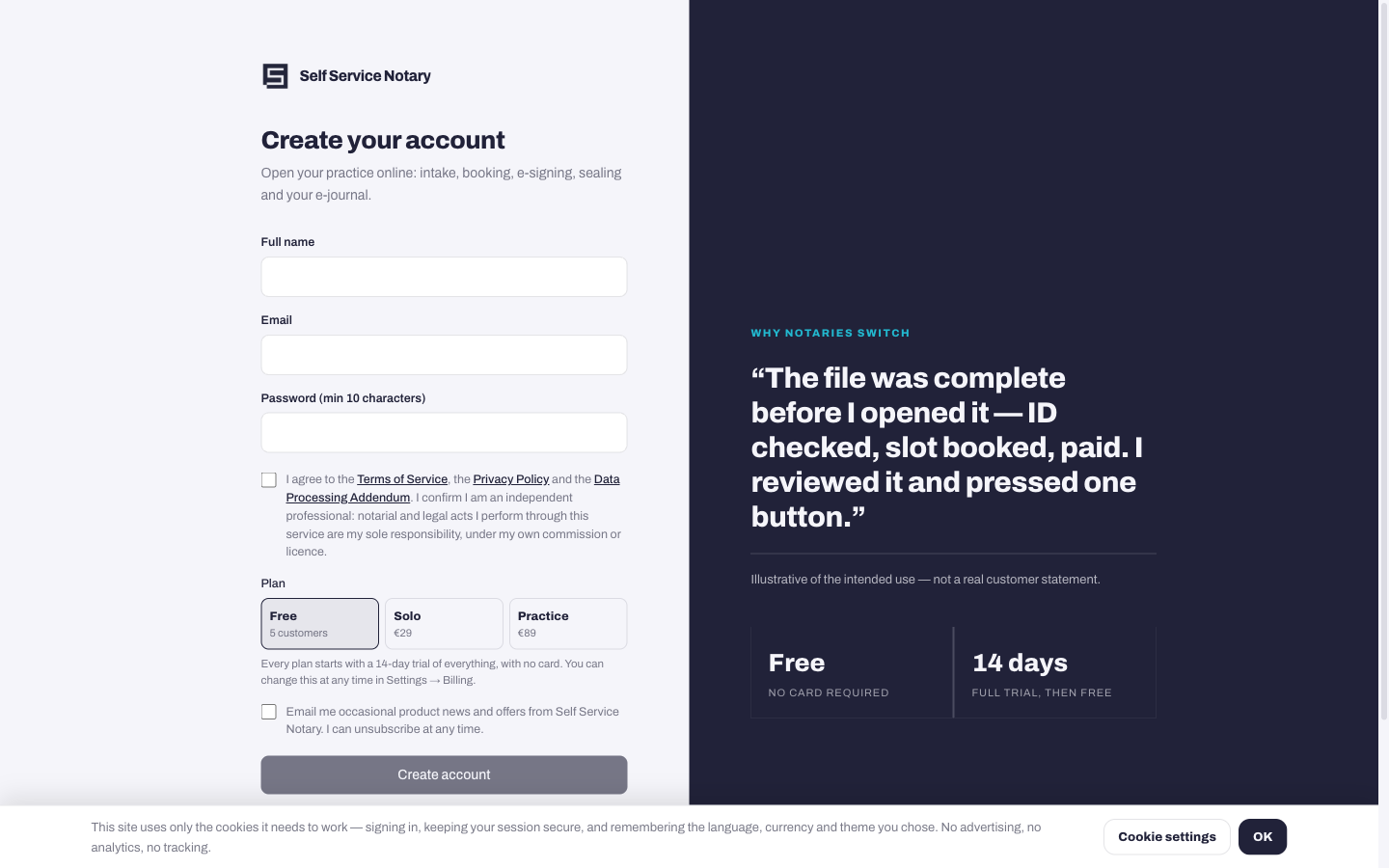
Create your account
Go to selfservicenotary.com and press Get started. The form asks for your name, your email address and a password of at least ten characters.
- Fill in your full name, email and password.
- Tick the box confirming you accept the Terms, the Privacy Policy and the DPA — the button stays disabled until you do.
- Pick a starting plan. Every plan begins with a 14-day trial of everything and no card is needed; you can change it later in Settings → Billing.
- Press Create account.
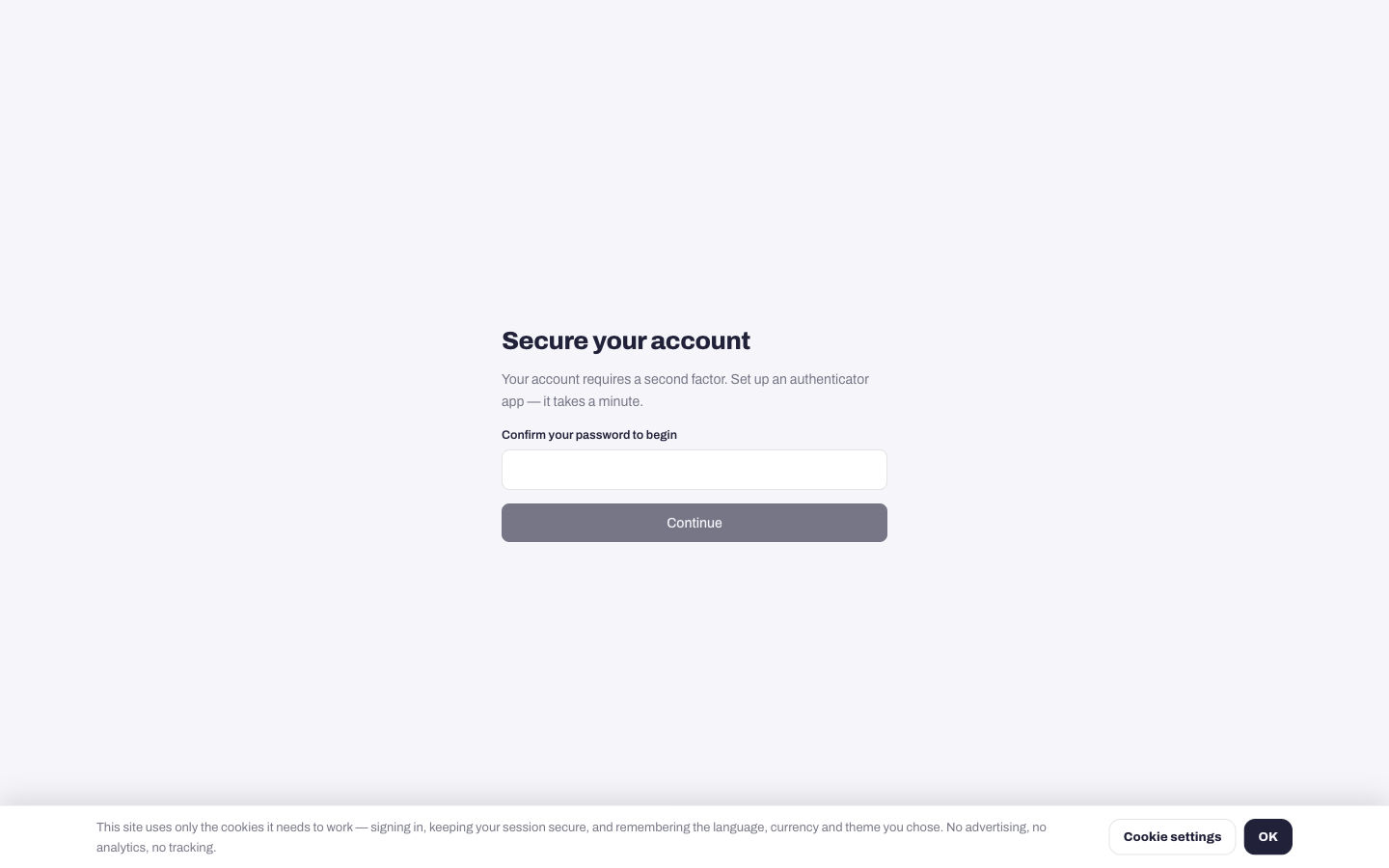
Turn on two-factor (it is required)
Every account secures itself with an authenticator app as well as a password — this is what protects a practice that signs binding documents.
- Confirm your password to begin.
- Scan the QR code with Google Authenticator, Authy, 1Password or any authenticator app. If you cannot scan, type the secret key shown underneath it into the app by hand.
- Enter the six-digit code the app shows.
- Save the backup codes somewhere safe — each works once when you do not have your phone. They are shown only this once.
Sign-in from now on
Your password first, then a fresh six-digit code from the same app. Lost the phone? A backup code gets you in.
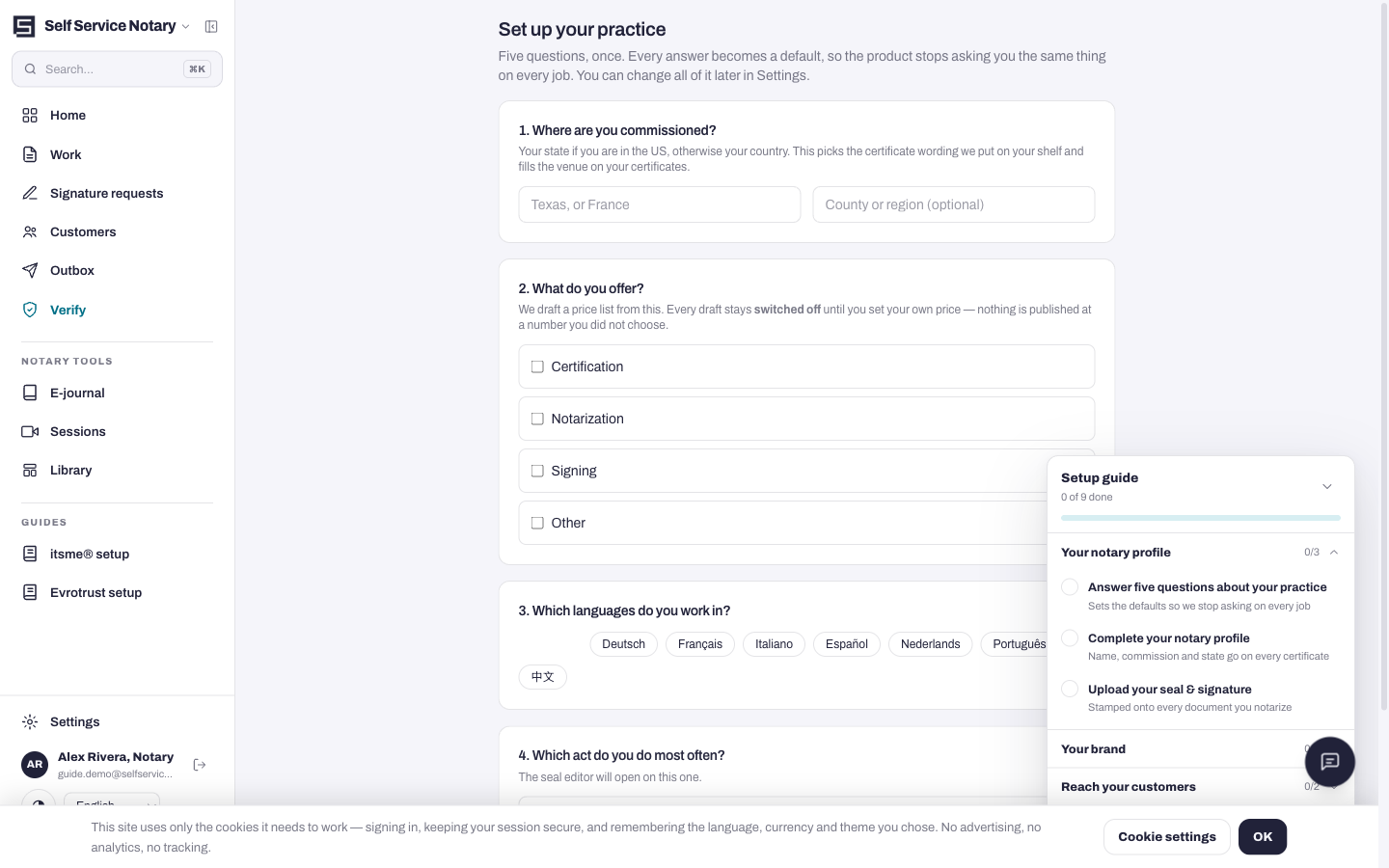
Answer the five practice questions
The first screen after sign-up asks five questions about your practice — where you are commissioned, what you certify, and similar. Every answer becomes a default, so the product stops asking the same thing on every job. You can change all of it later in Settings.
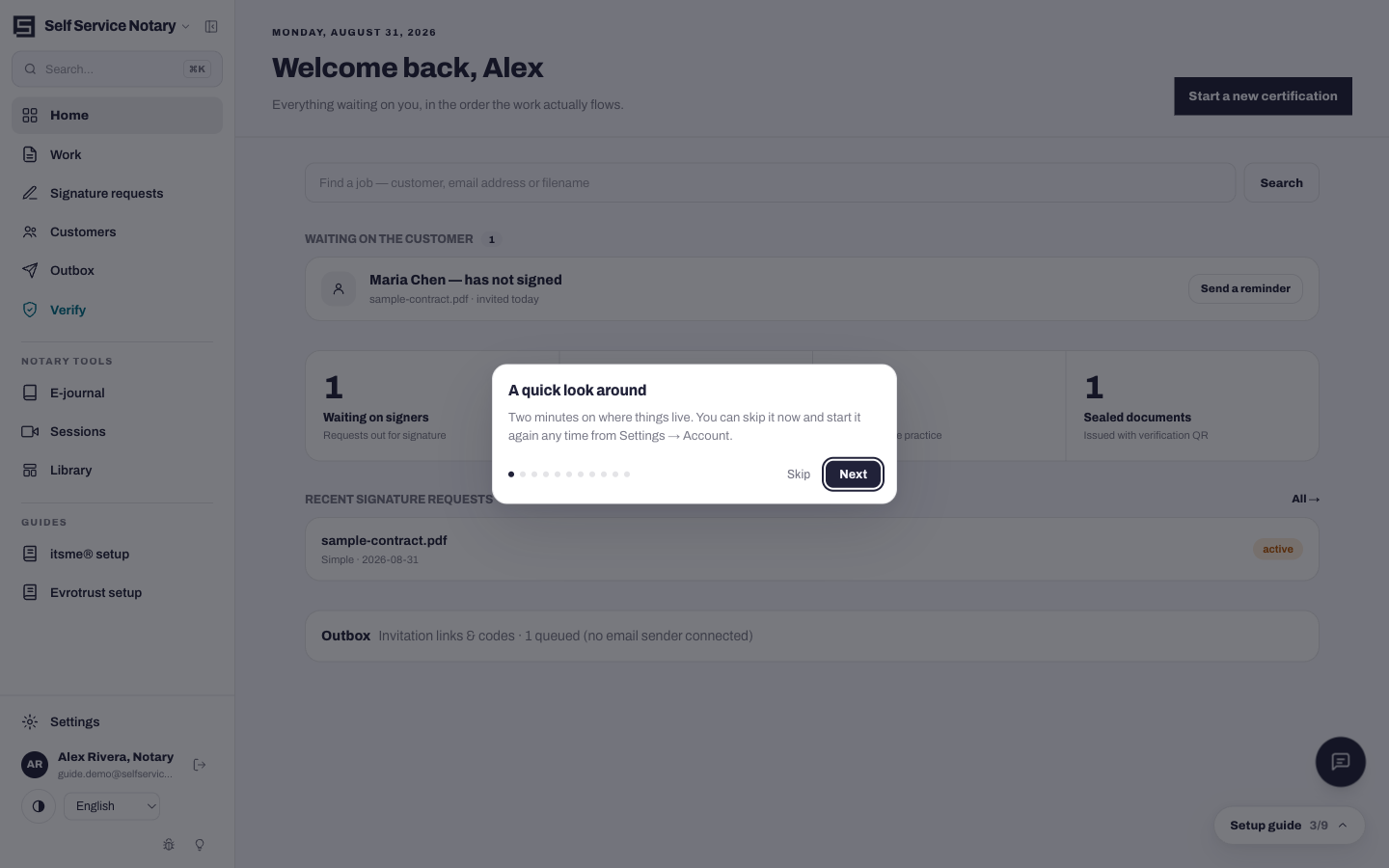
Find your way around
The dashboard is home base: counters for what moved today, your recent work, and the floating setup guide that tracks the first tasks (profile, seal and signature images, and so on) until they are done.
- Home — the dashboard you are looking at.
- Work — every document in the practice and whose move it is; this is where jobs start.
- Signature requests — the status of each signature and identity check you requested.
- Customers — your book, entered by hand, imported from CSV, or arriving through your portal link.
- Verify — the in-app tool for checking a document against the ledger.
- Notary tools — the e-journal, live Sessions, and the Library of reusable material.
- Guides — the itsme® and Evrotrust setup pages, and this guide.